ترك رسالة
إذا كنت مهتمًا بمنتجاتنا وترغب في معرفة المزيد من التفاصيل، يرجى ترك رسالة هنا، وسنرد عليك في أقرب وقت ممكن.

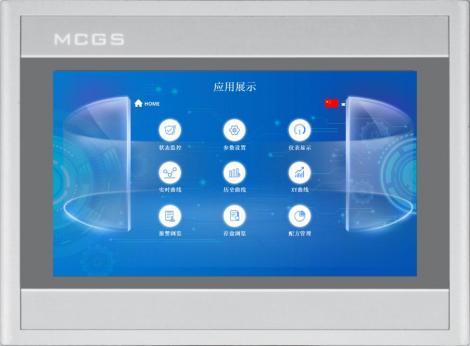
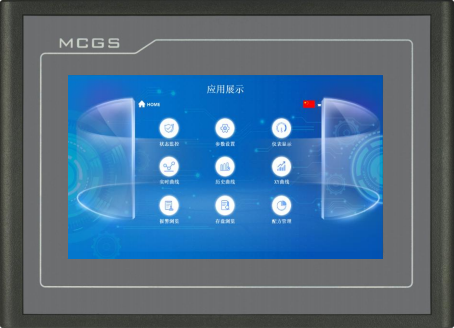
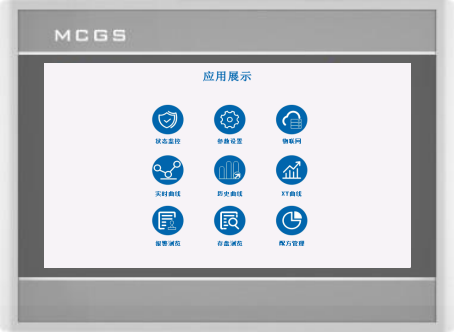
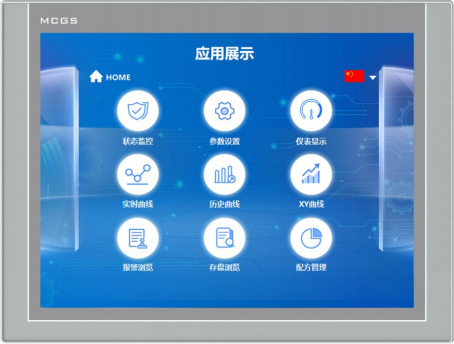
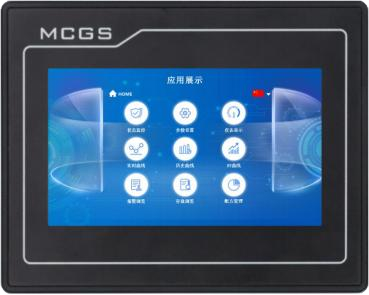
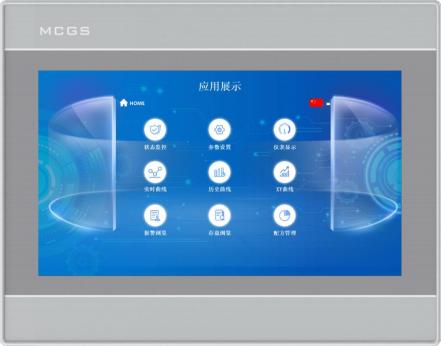
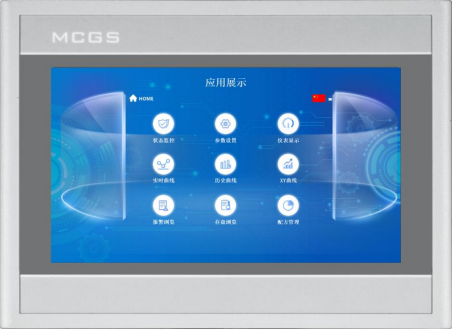
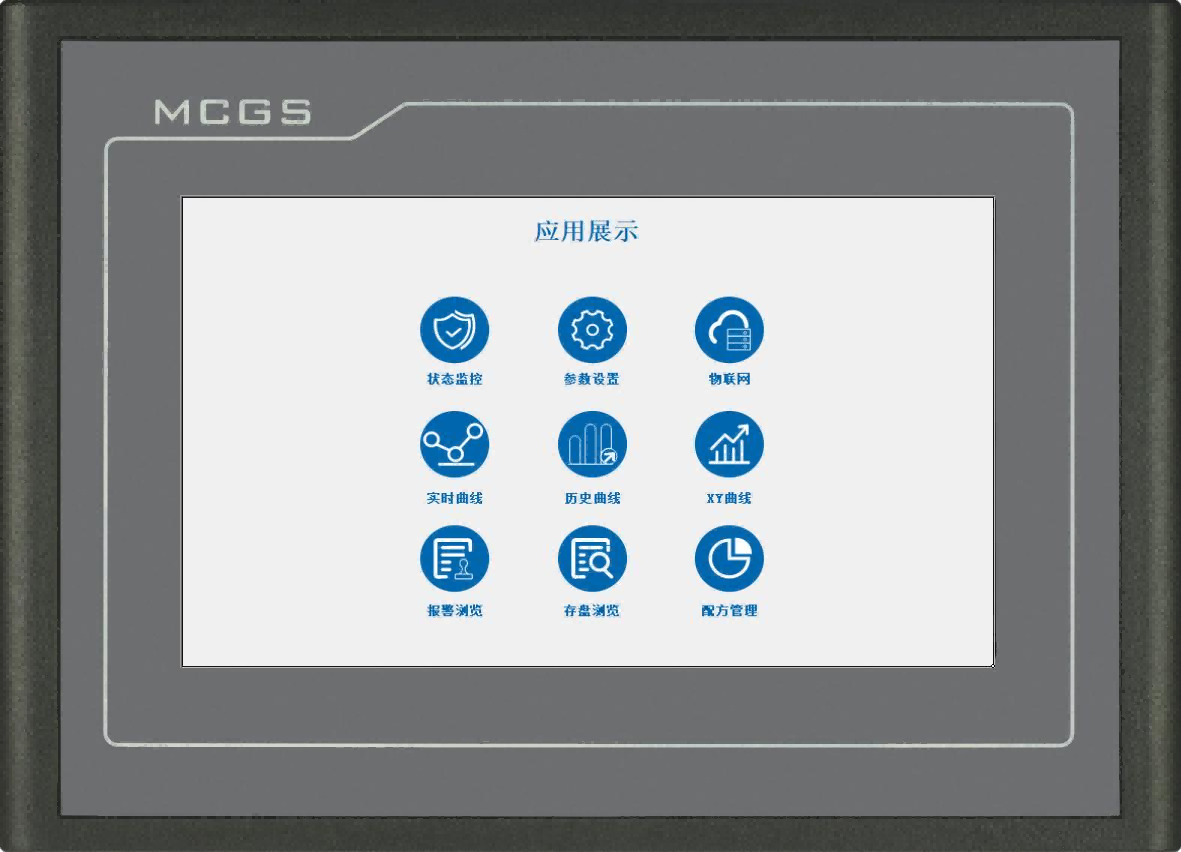
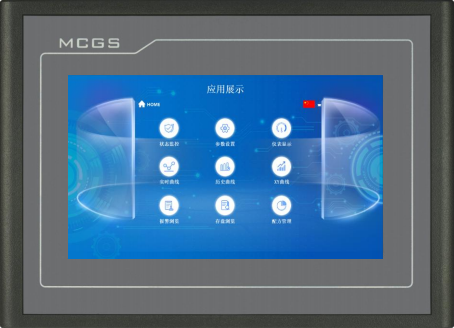
تُعتبر سلسلة G من TPC، التي طرحتها شركة Kunlun Tech، لوحة لمس ذكية من الدرجة الأولى، ومناسبة تمامًا لتلبية مجموعة واسعة من متطلبات تطبيقات المستخدم.
رقم الصنف :
TPC7072Giالطلب (الحد الأدنى للكمية) :
50قسط :
Paypal\TT\Western Unionمنشأ المنتج :
Guangdong, Chinaوزن :
1KGتتميز شاشة اللمس الصناعية من سلسلة G بتصميم مبتكر وأداء رائد في الصناعة، مصنوعة بجودة عالية وموثوقية فائقة. بتصميم أنيق وعصري، تتميز الشاشة بهيكل فائق النحافة وخفيف الوزن لتركيب أنيق وتوفير المساحة. مزودة بذاكرة تشغيل اختيارية بسعة 256 ميجابايت أو 1 جيجابايت ومساحة تخزين داخلية 8 جيجابايت، مما يضمن سلاسة تشغيل النظام وسعة تخزين بيانات كافية. كما تدعم الشاشة تخصيص المستخدم، حيث يمكن تعديلها بمرونة لتلبية متطلبات الاستخدام المتنوعة في الموقع، مما يجعلها مثالية لمختلف سيناريوهات التحكم الصناعي والتطبيقات الذكية.
مقدمة المنتج
| تصنيف | غرض | TPC7072Gi |
| ميزات المنتج | شاشة الكريستال السائل | شاشة TFT مقاس 7 بوصات |
| نوع الإضاءة الخلفية | قاد | |
| لون العرض | 262 ألف | |
| معدل تمييز النقاط | 800×480 | |
| سطوع الشاشة | 300 شمعة/م² | |
| شاشة تعمل باللمس | مقاوم رباعي الأسلاك | |
| جهد الدخل | 24±20% فولت تيار مستمر | |
| عزل الطاقة | مدمج | |
| القدرة المقدرة | 5W | |
| أداة سبب المكان | معالج رباعي النواة Cortex-A53 بسرعة 1 جيجاهرتز | |
| بث مباشر من الداخل | 512 ميجابايت | |
| تخزين النظام | 8 جيجابايت | |
| مساحة تخزين | 8 جيجابايت | |
| ساعة يدوية | مدمج | |
| برنامج التكوين | McgsPro 3.3.6.6354 SP1.3 الإصدارين 1 و 2 | |
| واجهة خارجية | واجهة تسلسلية | الطريقة الأولى: COM1(232) COM2(485) COM3(485) COM4(232) الطريقة الثانية: COM1(232) COM4(232) COM9(422) |
| واجهة USB | مضيف واحد، تابع واحد | |
| منفذ إيثرنت | 1 × 10/100 متر تكيفي | |
| الظروف البيئية | درجة حرارة التشغيل | 0 درجة مئوية ~ 50 درجة مئوية |
| رطوبة التشغيل | 5%~90% (بدون تكثيف) | |
| درجة حرارة التخزين | -10 درجة مئوية ~ 60 درجة مئوية | |
| رطوبة التخزين | 5%~90% (بدون تكثيف) | |
| مواصفات المنتج | مادة الغلاف | البلاستيك الهندسي |
| لون الغلاف | فضي | |
| الأبعاد الخارجية | 203 مم × 149 مم | |
| فتح الرف | 192 مم × 138 مم | |
| حجم الشاشة | 155 مم × 88 مم | |
| شهادة الاعتراف | شهادة المنتج | يتوافق مع معايير شهادة CE/FCC |
| مستوى الحماية | IP65 (اللوحة الأمامية) | |
| التوافق الكهرومغناطيسي | المستوى الصناعي 3 |
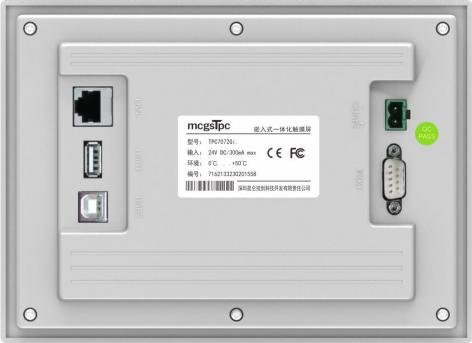
وصف الواجهة
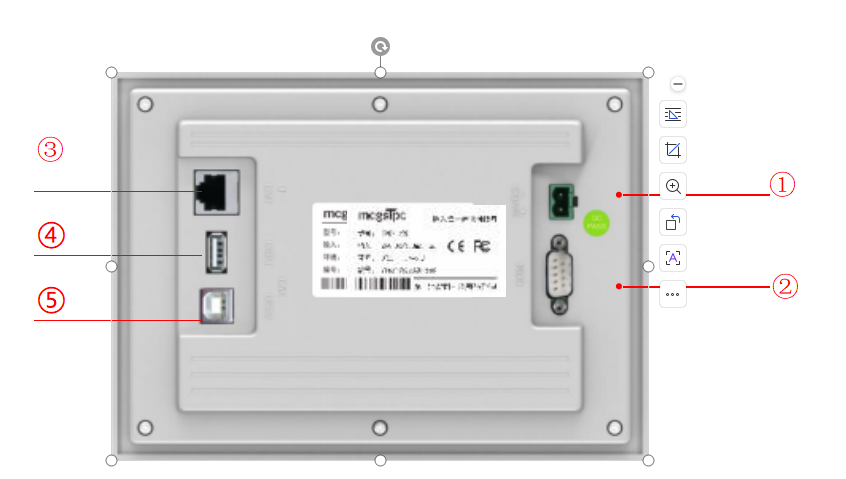
① | مصدر الكهرباء |
|
| - | 1 | 0V |
+ | 2 | تيار مستمر 24 فولت | ||||
② |
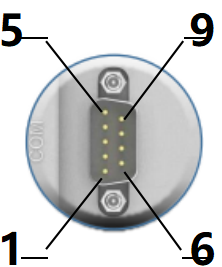
منفذ تسلسلي |
|
COM1 | 2 | RS232 RXD | |
3 | RS232 TXD | |||||
5 | أرضي | |||||
COM2 | 7 | RS485+ | ||||
8 | RS485- | |||||
COM3 | 4 | RS485+ | ||||
9 | RS485- | |||||
COM4 | 1 | RS232 RXD | ||||
6 | RS232 TXD | |||||
5 | أرضي | |||||
COM9 | 7 | RXD+ | ||||
8 | RXD- | |||||
4 | TXD+ | |||||
9 | TXD- | |||||
ملاحظة: لا يمكن استخدام com9 في نفس الوقت مع com2 أو com3. | ||||||
③ | نت ماوث | يسمح منفذ إيثرنت التكيفي بسرعة 10 ميجا/100 ميجا بتحميل أو تنزيل المشاريع، وترقية بيئة التشغيل (يجب أن تكون بيئة تشغيل الشاشة Pro 3.3.2 أو أعلى)، والتواصل مع الأجهزة الأخرى. | ||||
| ||||||
④ | منفذ USB 1 الرئيسي | يدعم منفذ USB 2.0 تحديث بيئة تشغيل الشاشة اللمسية والمشاريع والنظام عبر محرك أقراص فلاش USB، بالإضافة إلى وظائف استيراد وتصدير البيانات. | ||||
⑤ | منفذ USB 2 | يسمح منفذ USB الذكري (النوع B) بتحميل أو تنزيل المشاريع. | ||||
تركيب المنتج
أبعاد المنتج
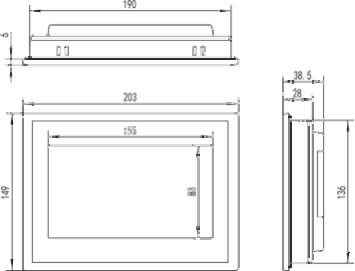
الأبعاد الخارجية
طريقة التركيب
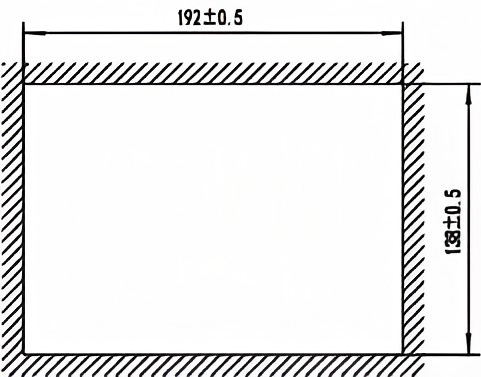
حجم الفتحة
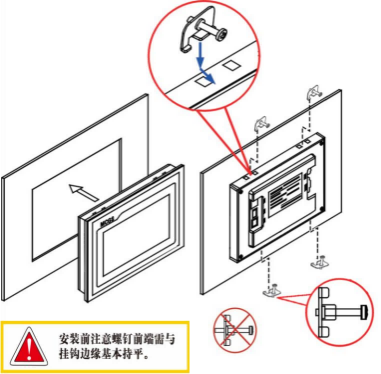
تركيب الخطافات
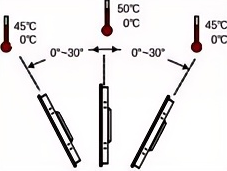
زاوية التركيب
صيانة المنتج
1.5.1 بطارية بديلة
موقع البطارية: TPC على لوحة الدائرة داخل المنتج
مواصفات البطارية: بطاريات ليثيوم CR2032 3 فولت
أثناء التركيب، يرجى توخي الحذر لتجنب حدوث ماس كهربائي بين طرفي البطارية الموجب والسالب.
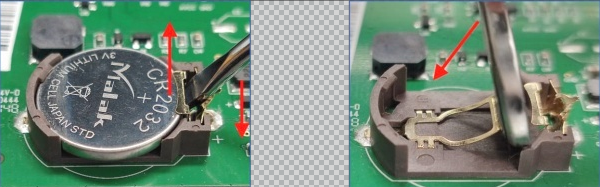
قم بإزالة البطارية ثم قم بتركيب البطارية
1.5.2 معايرة اللمس
ادخل إلى إعدادات النظام، ثم اضغط مطولاً على منطقة فارغة. ستبدأ عملية معايرة اللمس خلال ثوانٍ.
معايرة TPC: استخدم قلمًا أو إصبعًا للضغط برفق مع الاستمرار على مركز مؤشر التقاطع. عندما ينتقل المؤشر إلى النقطة التالية، ارفعه. كرر هذه العملية حتى تظهر رسالة "تم قياس إعدادات المعايرة الجديدة". انقر على زر "تأكيد المعايرة" لحفظ الإعدادات والخروج من برنامج المعايرة.
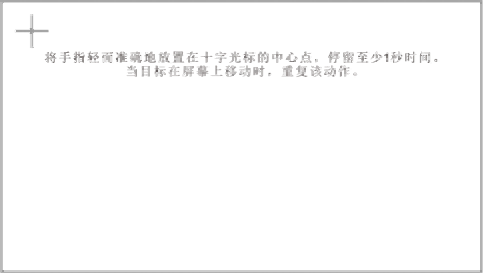
ضع إصبعك برفق ودقة على مركز مؤشر التصويب، واستمر بالضغط عليه لمدة ثانية واحدة على الأقل بينما يتحرك الهدف عبر الشاشة. كرر هذه العملية.
1.5.3 فيلم ثلاثي الحماية
يمكن لطبقة واقية أن تمنع بشكل فعال الغبار والزيوت والملوثات الأخرى المتولدة أثناء الإنتاج من التأثير على الجلد. مادة TPC عرضة للتآكل، لذلك، عند الضرورة، يمكن استخدام غشاء واقٍ لحمايتها. سنستخدم هذا كمثال توضيحي؛ وسيتم مناقشة النماذج الأخرى لاحقًا. خطوات تطبيق واقي الشاشة متشابهة.
الأدوات المطلوبة: تتضمن TPC غشاءً ثلاثي الحماية (متوفر للشراء من موردي الشاشات)، وقطعة قماش مقاومة للغبار، ومنظف مضاد للكهرباء الساكنة صديق للبيئة، وبكرة.
خطوات التشغيل:
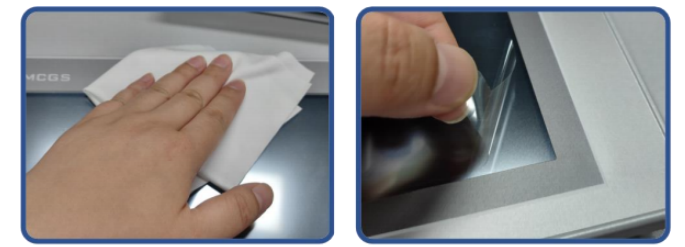
١) نظّف الشاشة. استخدم قطعة قماش ناعمة لإزالة الأوساخ من اللوحة الأمامية لمنع ظهور الفقاعات عند تركيب واقي الشاشة. إذا كان سطح TPC متسخًا بشدة، استخدم منظفًا لإزالة الملوثات من الشقوق حول الحواف.
2) قم بإزالة الغشاء الواقي المصنوع من مادة البولي إيثيلين تيريفثالات (PET) المثبت في المصنع ونظف أي بقايا لمنع تكون الفقاعات أثناء الاستخدام.
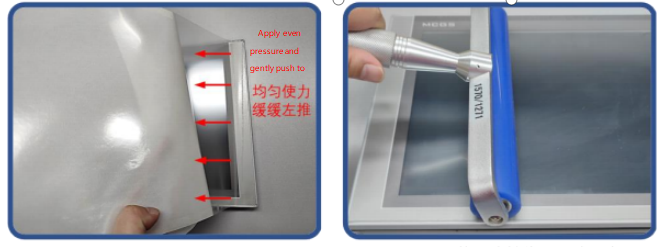
3) انزع زاوية من الغشاء الخلفي على الجانب الأيمن. قم بمحاذاة الجانب الأيمن من الغشاء مع الجانب الأيمن من شاشة TPC. بيدك اليسرى، انزع الغشاء الخلفي ببطء، وبيدك اليمنى، اضغط بالتساوي لدفع الغشاء برفق على الشاشة من اليمين إلى اليسار.
4) بعد وضع الفيلم، استخدم أسطوانة للضغط على الطبقة اللاصقة الخلفية بقوة لمنع تكون فقاعات الهواء.
الاحتياطات:
1) يجب إزالة الغشاء الواقي المُثبّت في المصنع قبل وضع الغشاء الواقي ثلاثي الطبقات. غشاء واقي من مادة البولي إيثيلين تيريفثالات (PET).
2) يُعدّ الغشاء المقاوم للعوامل الجوية مادة استهلاكية. إذا تبيّن أن حوافه متقشرة أو منتفخة، فيجب وضع غشاء جديد.
3) عند استبدال الغشاء الواقي، قم برفعه من الزاوية اليمنى السفلية للوحة الأمامية، مع الحرص على عدم خدش غشاء الإغلاق.
2 تحميل المشروع
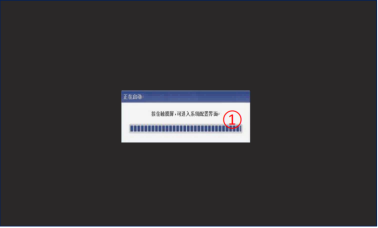
الخطوة 1: استخدم مصدر طاقة تيار مستمر 24 فولت TPC. بعد تشغيل الجهاز وبدء التشغيل، سيظهر شريط تقدم "بدء التشغيل" على الشاشة. عند هذه النقطة، انقر على TPC①، وسيتم نقلك إلى واجهة تهيئة بدء التشغيل. في حال عدم اتخاذ أي إجراء، سيتم نقلك تلقائيًا إلى واجهة تشغيل المشروع.
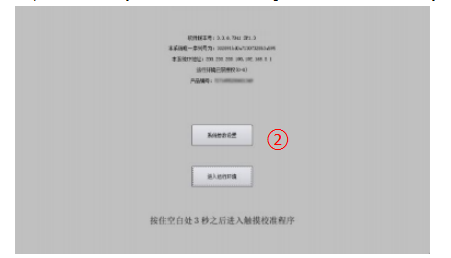
الخطوة 2: انقر فوق زر إعدادات معلمات النظام ②. ادخل إلى واجهة إعدادات نظام TPC.
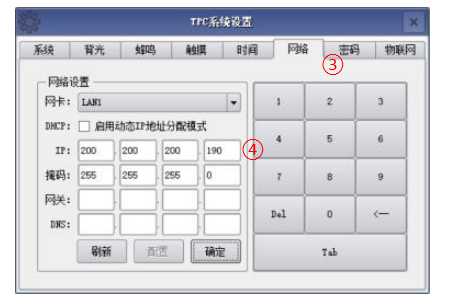
الخطوة 3: حدد علامة تبويب إعدادات الشبكة ③، وقم بتكوين ... عنوان IP الخاص بـ TPC 4، عنوان IP الافتراضي لـ TPC هو 200.200.200.190.
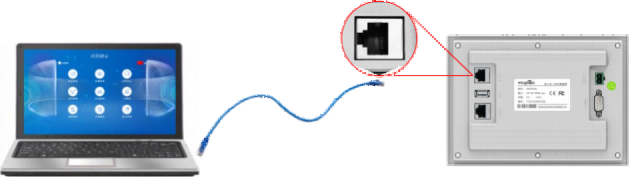
الخطوة 4: قم بتوصيل الكمبيوتر و... TPC، وعنوان IP الخاص بالكمبيوتر. مع عنوان IP الخاص بمنفذ LAN الخاص بـ TPC المتصل، قم بتعيينهما على نفس شريحة الشبكة.
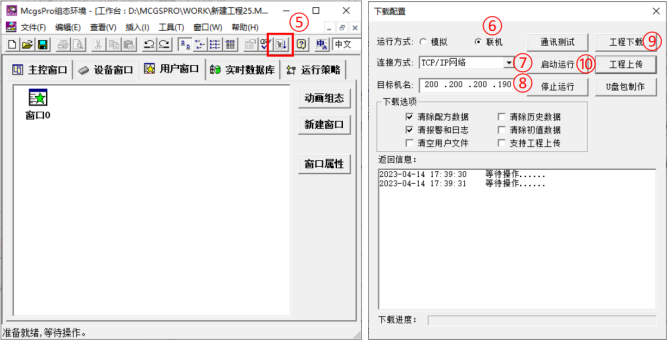
الخطوة 5: استخدم برنامج MCGS Pro. افتح مشروع TPC، انقر لتنزيل المشروع (⑤). افتح صفحة خصائص تكوين التنزيل وحدد "متصل" كوضع التشغيل. حدد طريقة الاتصال "TCP/IP" أو "شبكة" (⑦). أدخل اسم الجهاز المستهدف TPC أو عنوان IP الخاص به (⑧). انقر على "تنزيل المشروع" (⑨). بعد اكتمال التنزيل بنجاح، انقر على "بدء التشغيل" (⑩) أو... اضغط على زر "دخول بيئة التشغيل" في واجهة TPC لتشغيل المشروع على الشاشة.

ترك رسالة
امسح ضوئيًا إلى WeChat :

امسح ضوئيًا إلى واتساب :